
Your TV Subscription Just Got Better:
ESPN Unlimited Included

Great news! Your TV subscription now includes ESPN Unlimited at no additional cost.* If you already receive ESPN networks as part of your TV package, you’re all set— no extra charges.

Already Have Summit Broadband Service but Not TV?

Your home may be eligible for additional TV services. Log in to your My Account portal and select “Change Services” to view available TV upgrades and start watching more of what you love.

What is ESPN Unlimited?

ESPN Unlimited is the ultimate sports streaming experience, bringing all ESPN networks and ESPN+ content together in the ESPN website/app. Stream live games, exclusive shows, and on-demand content anytime, anywhere.

What’s Included?

  • All ESPN Networks & Services: ESPN, ESPN2, ESPNU, ESPNEWS, ESPN Deportes, SECN, ACCN, ESPN+, ESPN on ABC, SECN+, and ACCNX.
  • Coverage of Top Sports: NFL, NBA, NHL, MLB, tennis and golf majors, WWE, SEC, ACC, Big 12 football and basketball, postseason action, and more.
  • Fan-Favorite Shows: SportsCenter, First Take, College GameDay.
  • Live & On-Demand Streaming: Watch across smartphones, tablets, smart TVs, and computers.

Why You’ll Love it

  • No Extra Cost: Included with your TV subscription.
  • All-in-One Access: ESPN channels + ESPN+ content together in the ESPN website/app.
  • Stream Anywhere: Multiple devices, anytime.

Get Started

Follow these simple instructions on how to access ESPN Unlimited using your Summit Broadband account.

Guide 1: How to Register for WatchTVEverywhere with Summit Broadband

If you haven’t registered for a WatchTVEverywhere account yet (included with your Summit Broadband TV service), follow these simple steps. Already registered? Skip ahead to the next section.

  1. Step 1: Gather your account info
    • Make sure you have your Summit Broadband account number and last name as listed on your
      account.
    • You’ll need these to register.
  2. Step 2: Go to the WatchTVEverywhere website
  3. Step 3: Select your TV provider
    • From the dropdown menu, select Summit Broadband.
  4. Step 4: Register for an account
    • Click Register.
    • Enter your Summit Broadband account number, name, and any other required info.
    • Create a username and password for your WatchTVEverywhere account.
  5. Step 5: Confirm your registration
    • You may receive a confirmation email—click the link in the email to activate your account.
  6. Step 6: Log in and browse
    • Return to WatchTVEverywhere and log in with your new username and password.
    • You can now stream supported channels directly from the website or supported apps.
  7. Step 7: Activate your ESPN Unlimited
    • Once you are logged into your WatchTVEverywhere account, on the top left hand side of the screen you
      will see “Activate ESPN Unlimited Now! Click Here”


    • Click on “Click Here” and you will be redirected to the page to enter your WatchTVEverywhere credentials
      again.
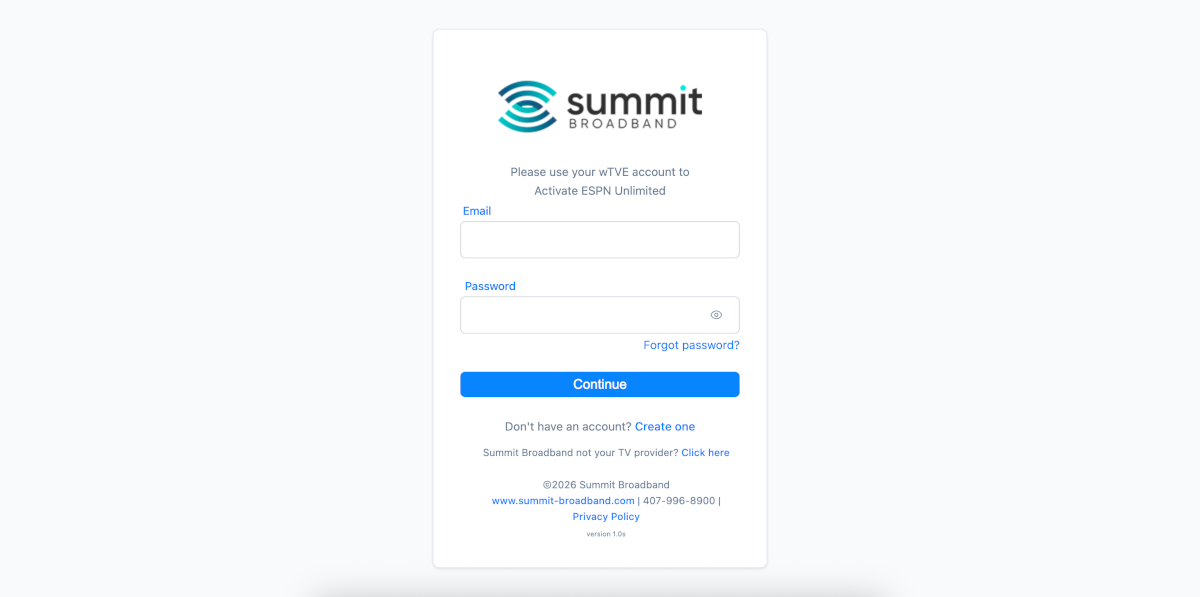

    • Enter your credentials and click Continue
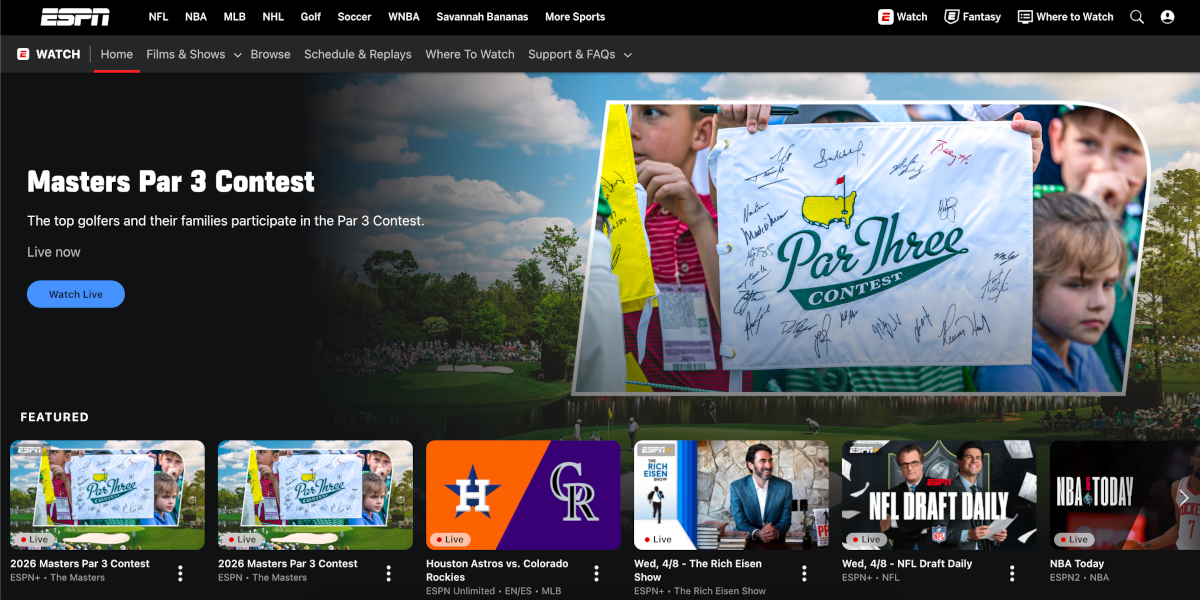
    • You will land on the ESPN page where you have access to all supported ESPN Channels

  8. Step 8 (optional): Explore and customize
    • Browse channels, favorite teams, or enable notifications for live games and events.

Guide 2: How to Add Your TV Provider in the ESPN App

Note: To access ESPN Unlimited on a different device after completing the initial setup, enter your MyDisney credentials at ESPN.com.

  1. Step 1: Download the ESPN app
    • On your mobile device or tablet, open your app store:
      • iPhone/iPad: App Store
      • Android: Google Play Store
    • Search for ESPN and tap Install / Get.
  2. Step 2: Open the ESPN app and log in
    • Launch the app after installation.
    • Tap Log In on the home screen.
    • If you don’t have an ESPN account:
      • Tap Create Account.
      • Enter your name, email, and a password.
      • Complete any prompts to set up your new account.
  3. Step 3: Go to TV provider settings
    • Tap Profile / Settings (usually in the top-right corner).
    • Select TV Provider Login or Sign In With TV Provider.
    • From the list, choose Summit Broadband.
  4. Step 4: Enter your WatchTVEverywhere credentials
    • Enter the username and password you created in WatchTVEverywhere.
    • Tap Submit / Log In.
  5. Step 5: Complete the setup
    • Once logged in, your ESPN app will recognize your Summit Broadband subscription.
    • You can now access live events, shows, and ESPN+ content included in your package.
  6. Step 6 (optional): Explore and customize
    • Browse channels, favorite teams, or enable notifications for live games and events.
*Must be 18 years of age or older to redeem the offer. For existing ESPN subscribers, this is an offer for an additional ESPN subscription. This will not replace any existing ESPN subscription you may already have. All other accounts must be managed separately. You must remain on an eligible plan to retain your offer. If you cancel your eligible plan or switch to a non-eligible plan, your access to ESPN will end at the end of your eligible plan. One offer per eligible account. Use of the ESPN is subject to the Disney+, ESPN, and Hulu Subscriber Agreement.